
Help center

Help for every team role.

Alvo should be clear beyond the trading desk. Each role sees what to do, which controls matter, what result to expect, and where human approval remains required.

Updated 2 October 2026
Where to start

A step-by-step guide to each tool — what it shows, how to check assumptions, and where human judgment remains.

How to use Alvo to assess trading decisions

Step by step through each tool: the data it shows, how to read scenarios, and how to assess risk before a decision.

Hourly DAM/IDM chart and signalsHourly DAM/IDM chart and signals

Hourly DAM/IDM chart and signals

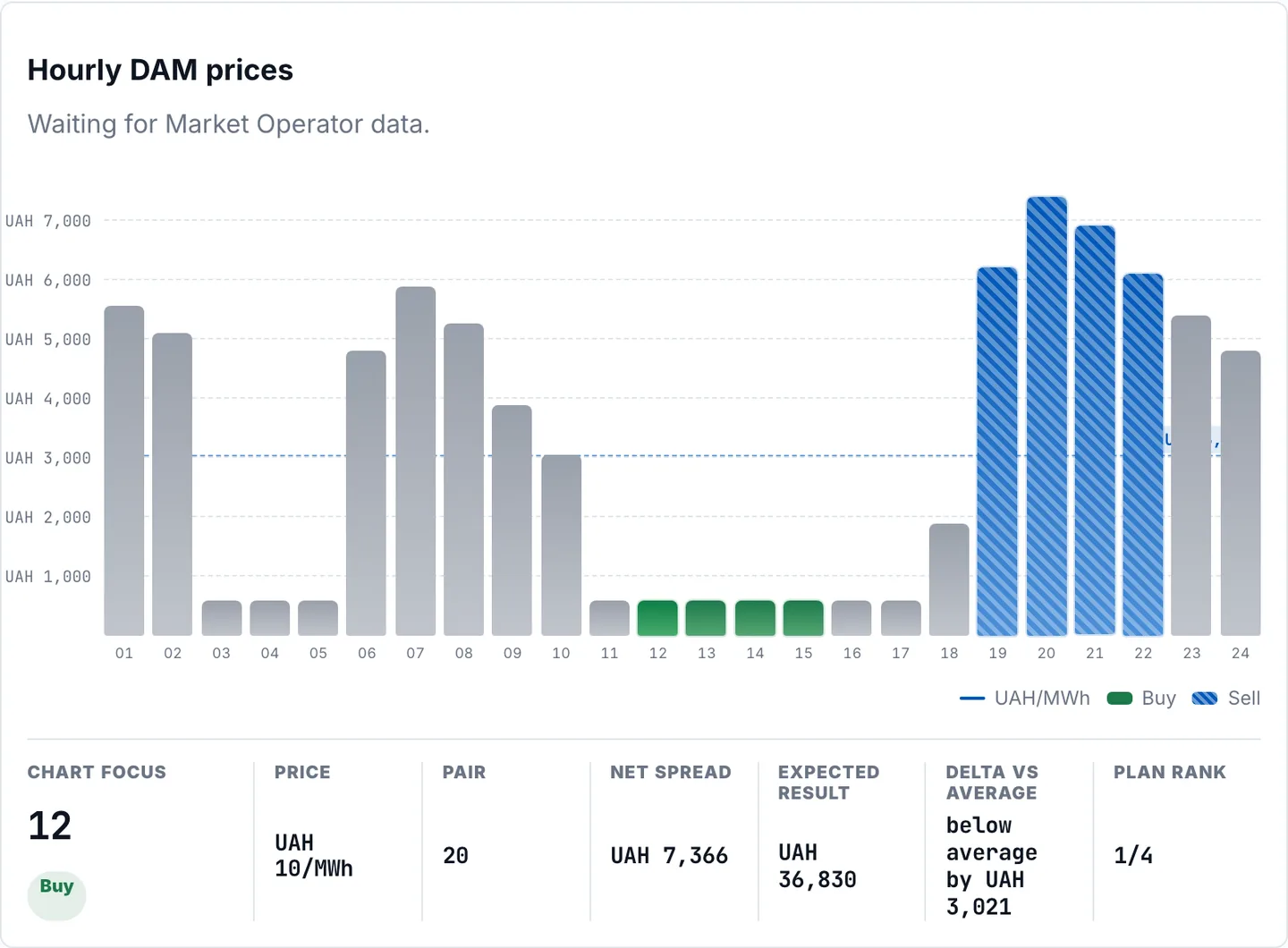
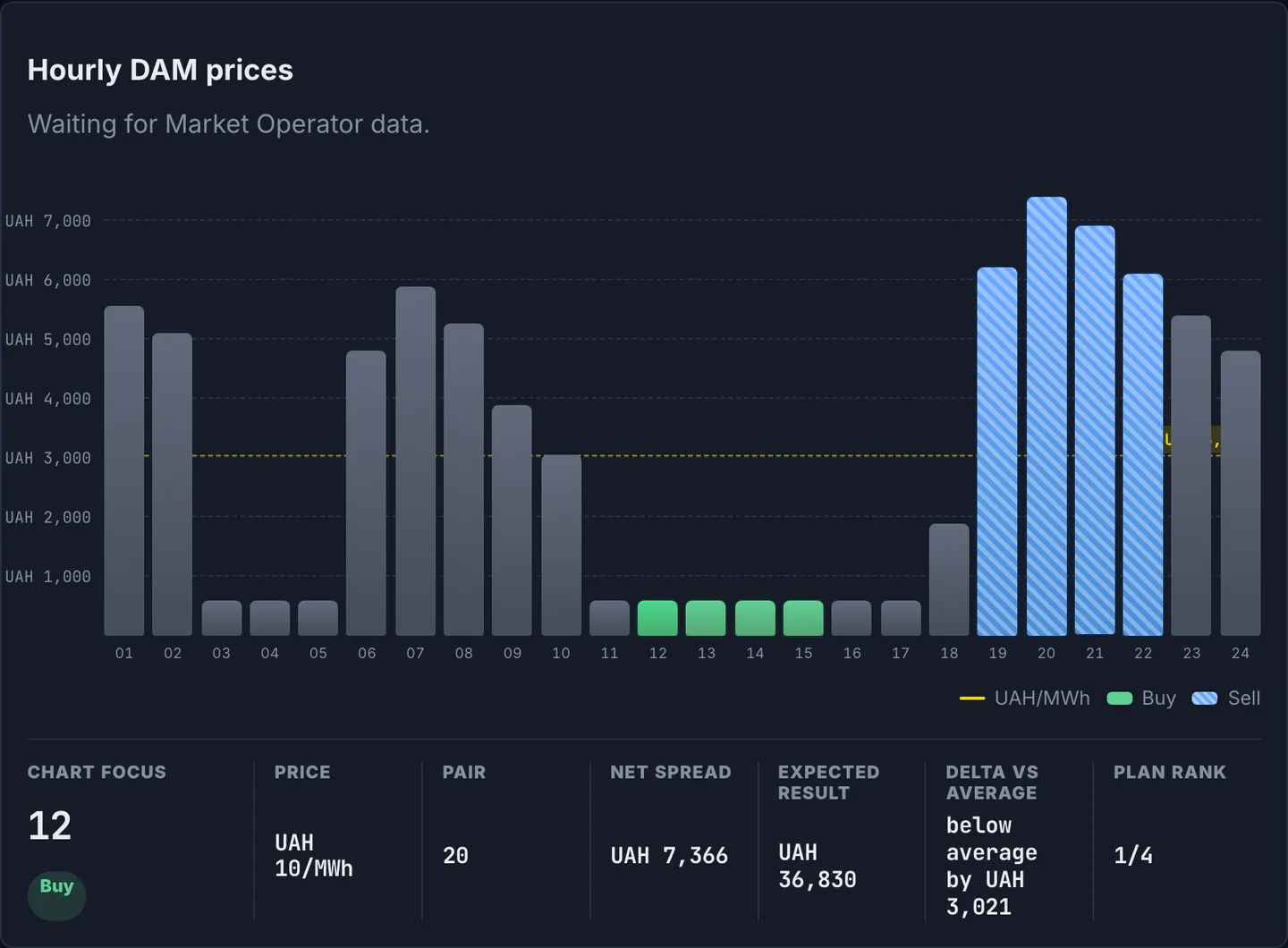
24 hours of official Market Operator prices with cheap (buy) and expensive (sell) hours marked, a P10–P90 forecast band, and a per-hour inspector.

  1. Scan the whole day: green marks are cheap hours, blue are expensive.
  2. Click any hour to open the inspector: price, delta vs average, forecast, and trade window.
  3. Switch DAM/IDM and check the forecast band and the model comparison with a simple benchmark.

Your margin is the spread: buy in cheap hours, sell in expensive ones. When a forecast is available, the workspace shows which model produced it and how it compares with a simple benchmark. The P10–P90 band shows scenarios, not a price-move guarantee; execution, liquidity, and imbalance stay separate checks.
AI briefAI brief

AI brief

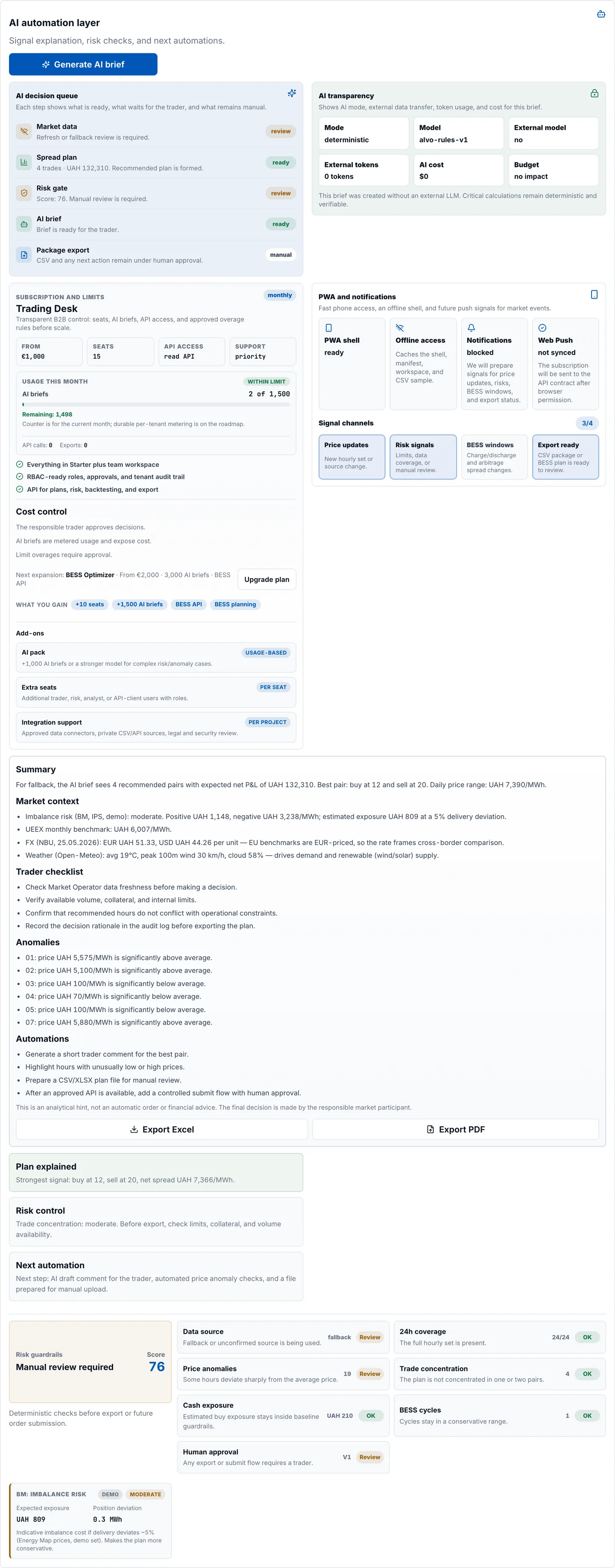
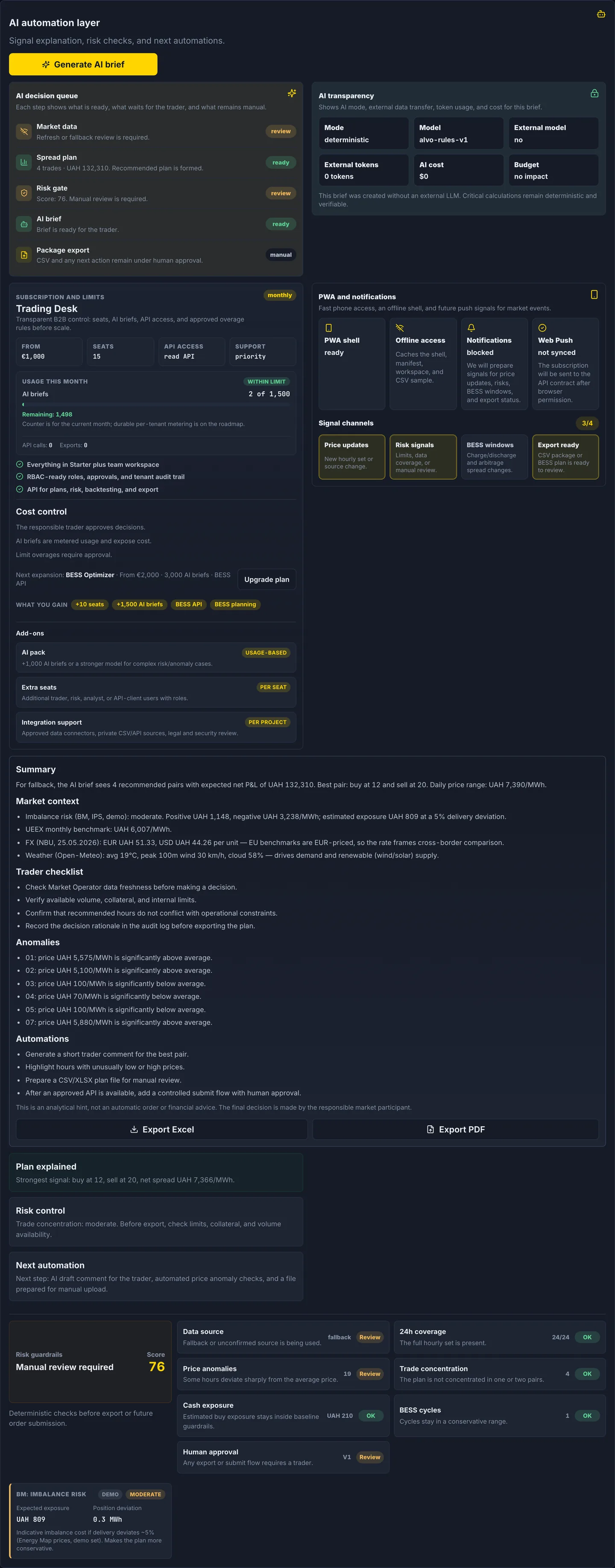
A plain-language explanation of the recommended plan: best hour pairs, expected net result, risks, and anomalies. Deterministic, with no external LLM and no leak of your data.

  1. Click “Generate AI brief”.
  2. Read the summary and trader checklist; check the data sources and model transparency.
  3. Export to XLSX or PDF for your team or compliance.

The brief brings the plan, assumptions, and risks into one text to review before a decision and discuss with the team.

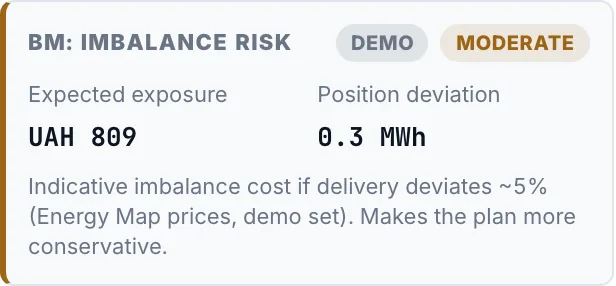
Imbalance risk (BM)Imbalance risk (BM)

Imbalance risk (BM)

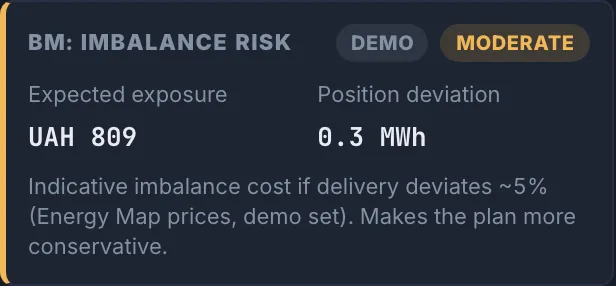
An imbalance-risk signal (low/moderate/high) with positive and negative imbalance prices and your estimated exposure if delivery deviates.

  1. Check the risk level for the day.
  2. Review the estimated exposure at a delivery deviation.
  3. Check whether the position needs adjustment, accounting for liquidity, timing, and imbalance rules.

The BM signal estimates an exposure scenario from observed prices; it helps you assess whether adjustment is needed, but it does not forecast settlement prices or guarantee avoidance of imbalance costs.

Retrospective opportunity scanRetrospective opportunity scan

Retrospective opportunity scan

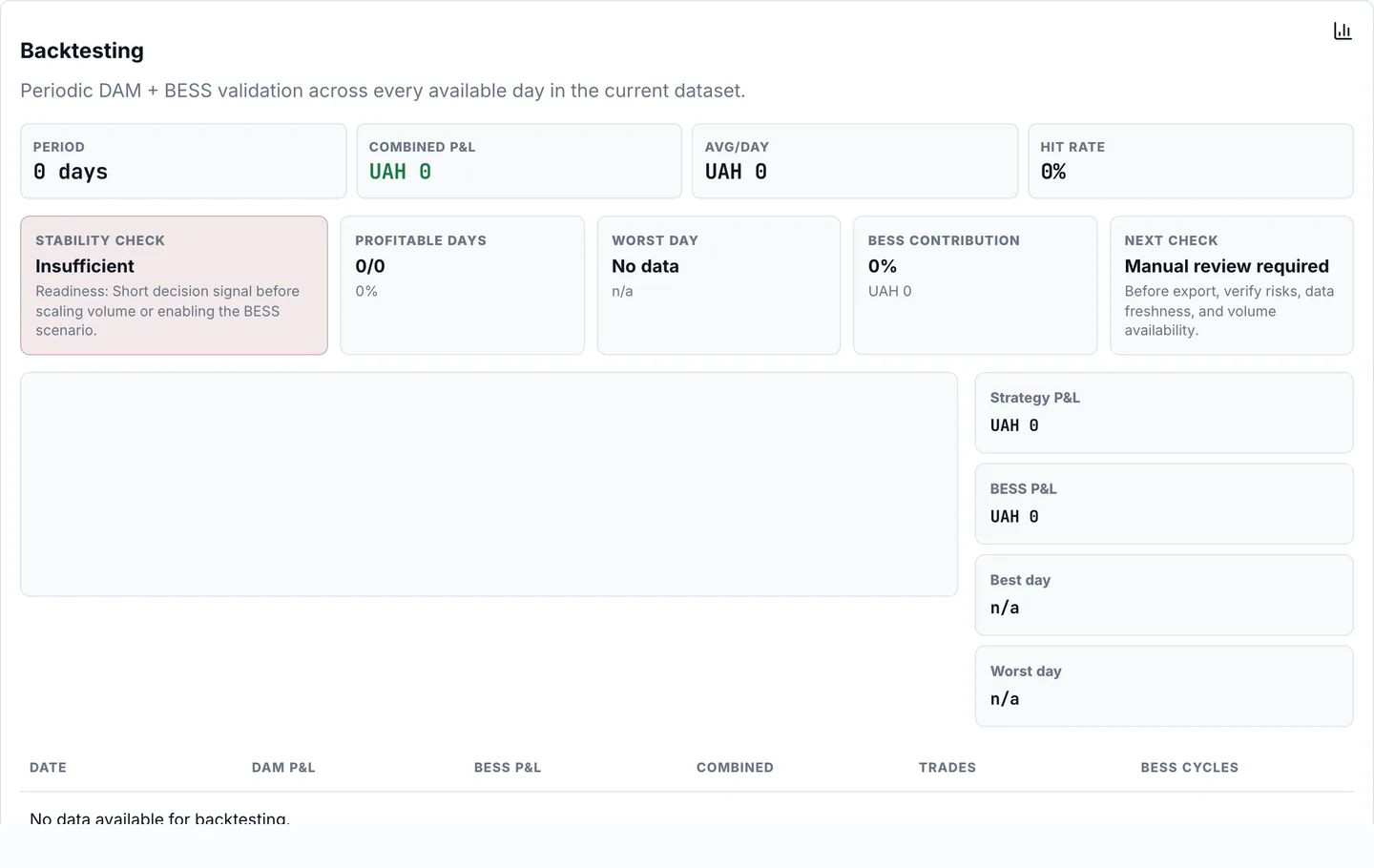
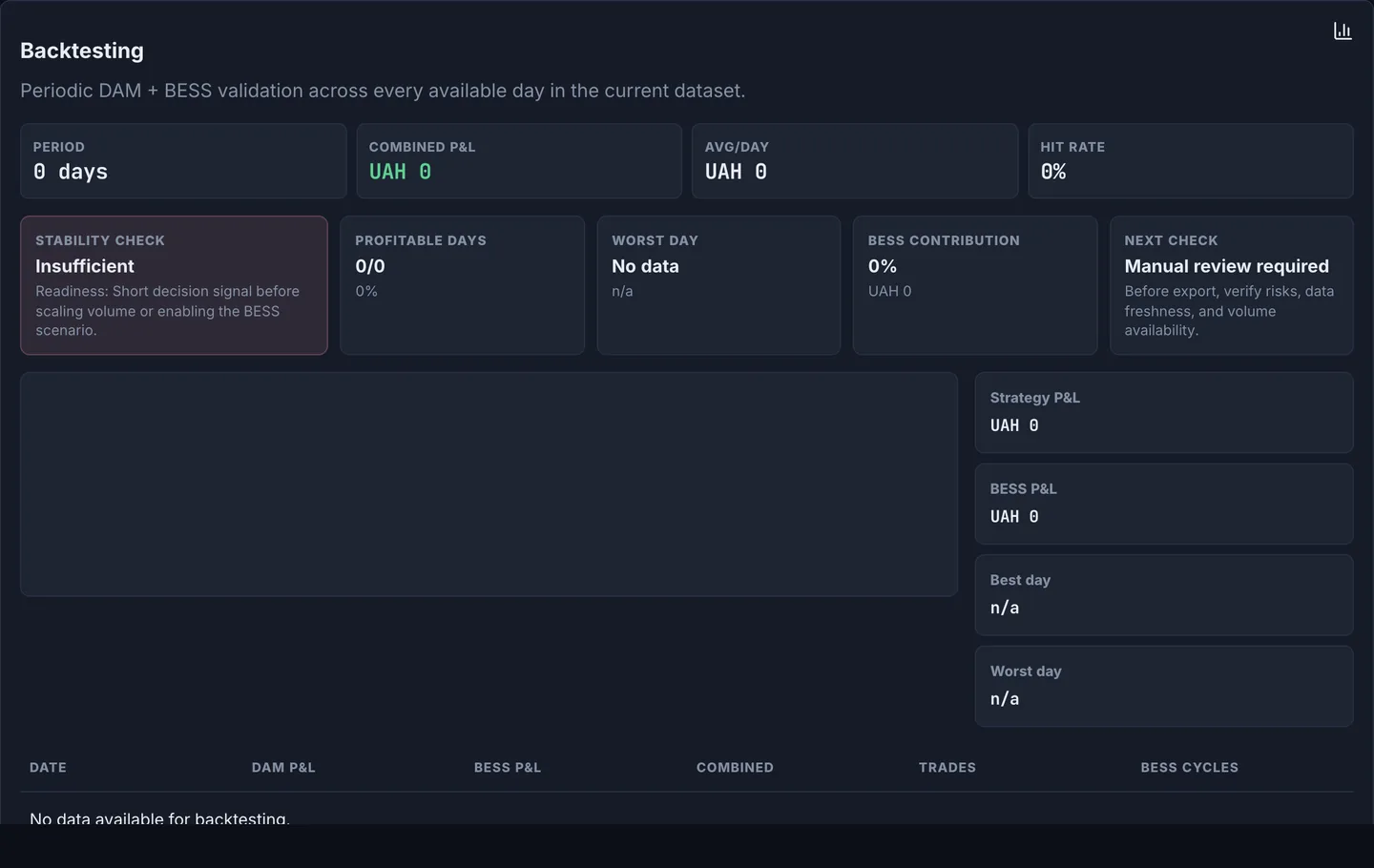
A hindsight scan of already-known daily price curves: the DAM and BESS planners independently look for opportunities with full knowledge of each day's prices. It shows the modeled result and daily rows.

  1. Run the scan over the available days.
  2. Read it as hindsight, not as the result of a plan made in advance (ex-ante).
  3. Inspect the per-day modeled result to see where the opportunities were historically.

The scan shows which opportunities existed in prices already known, with full knowledge of each day's prices; it does not prove future returns or that a plan made in advance would have captured them.

BESS arbitrageBESS arbitrage

BESS arbitrage

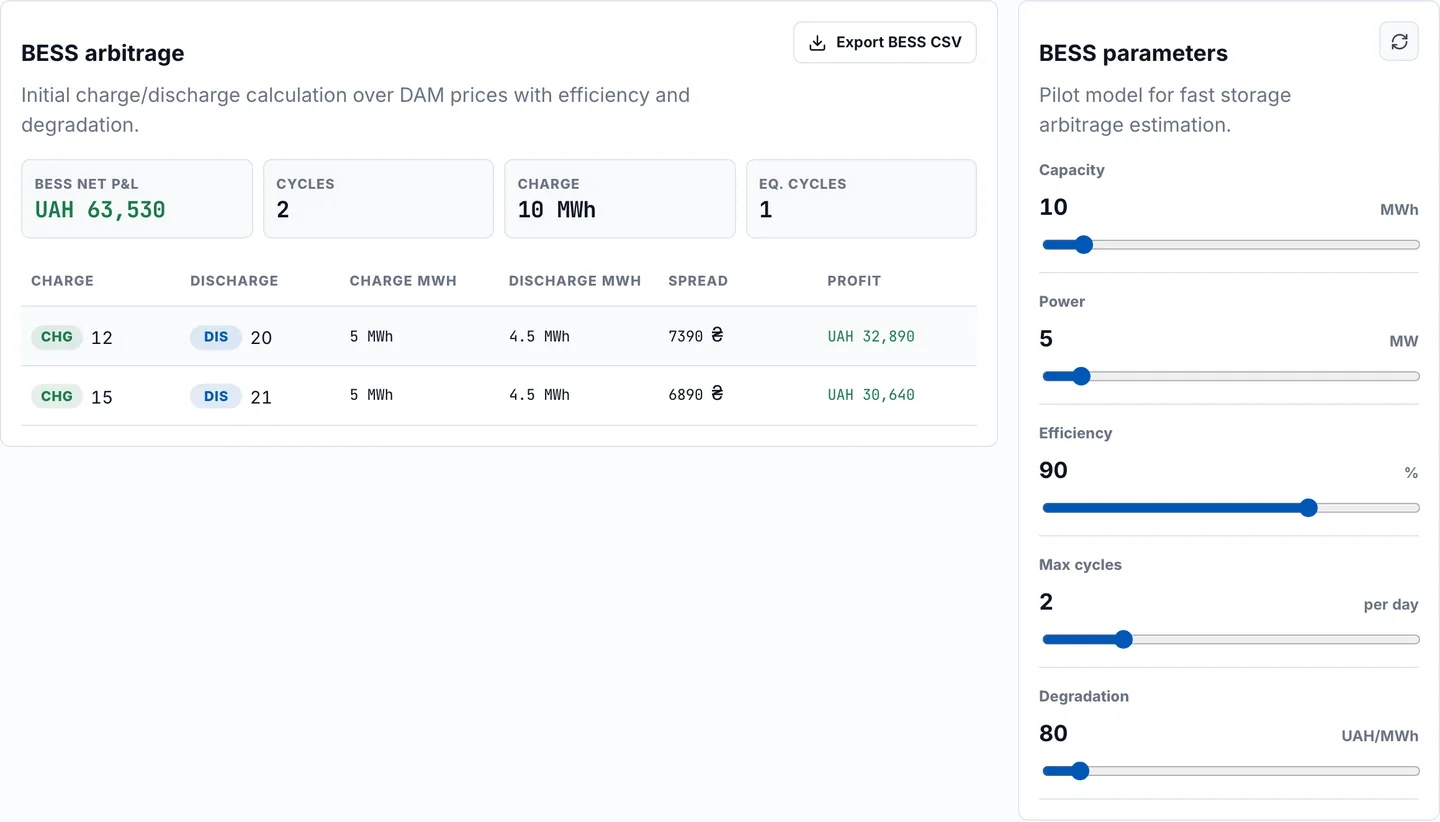
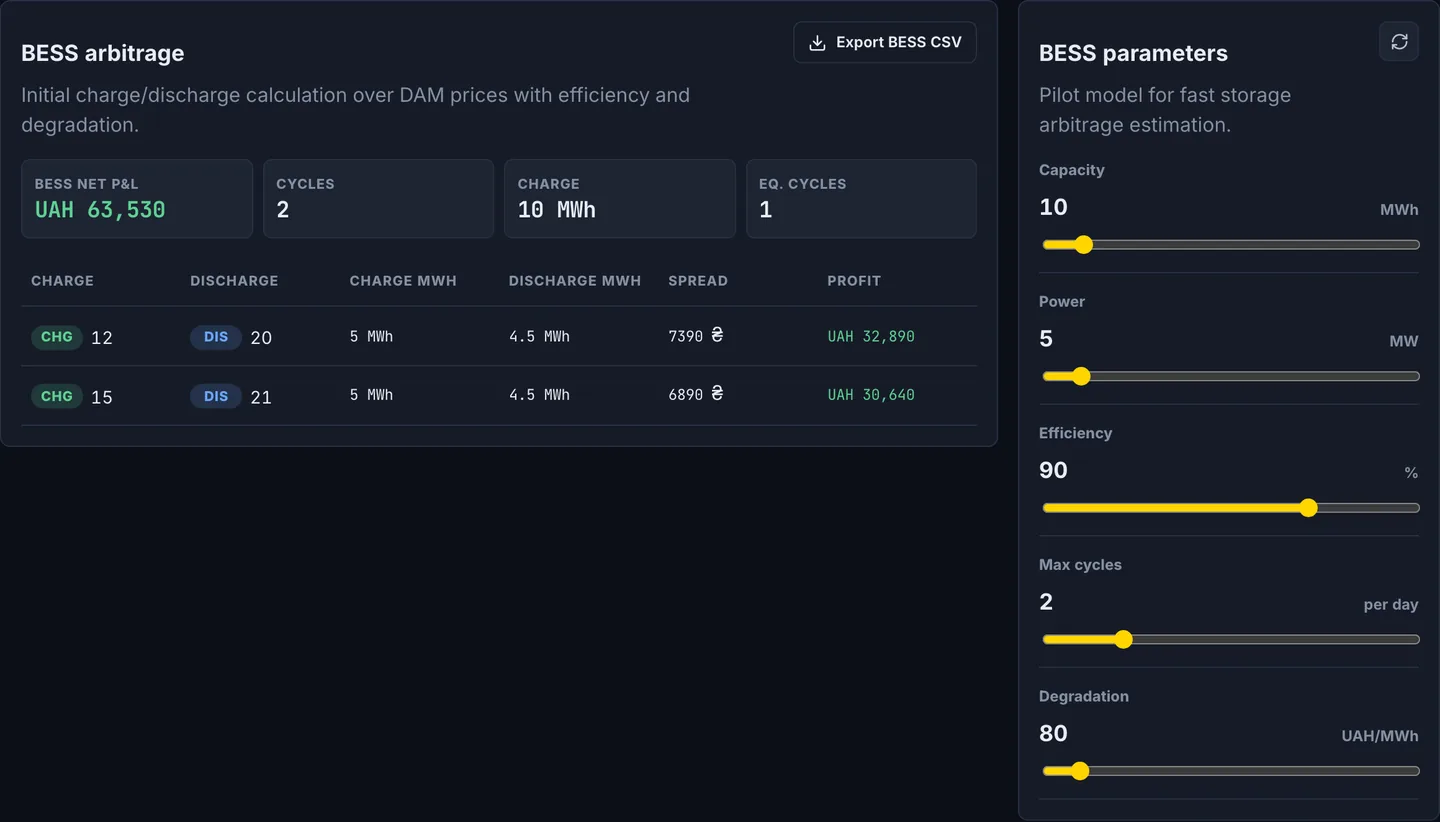
Charge/discharge planning for a battery over DAM prices, accounting for efficiency, cycles, and degradation cost.

  1. Set the battery capacity and power.
  2. Check state of charge, cycles, and equivalent cycles.
  3. Compare modeled BESS performance with DAM and export the CSV for your own review.

Assess a storage-arbitrage scenario: charge in cheaper hours and discharge in dearer ones, accounting for efficiency and degradation. This is a modeled result before execution, liquidity, and other costs — not realized P&L or an investment promise.

Account and usageAccount and usage

Account and usage

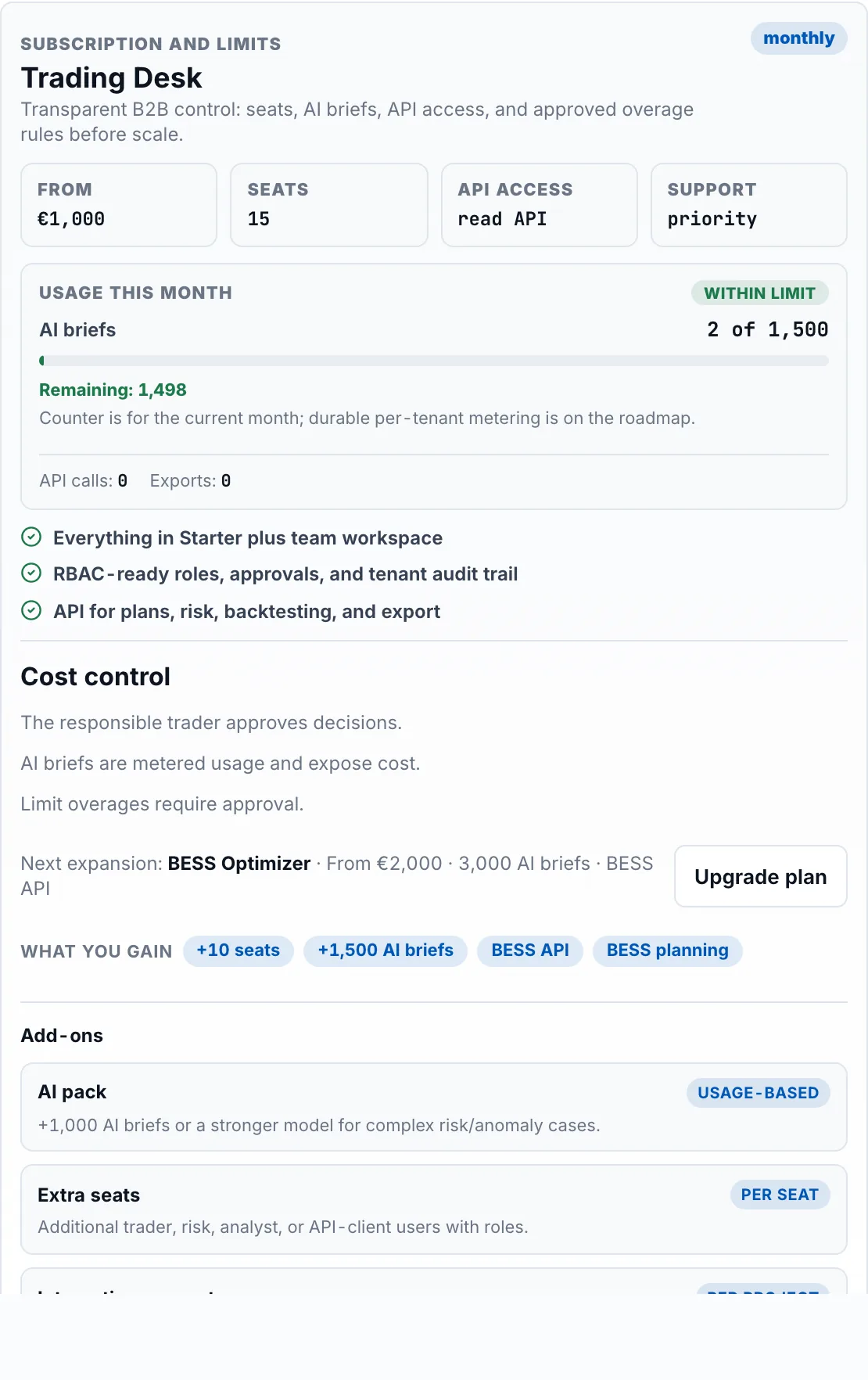
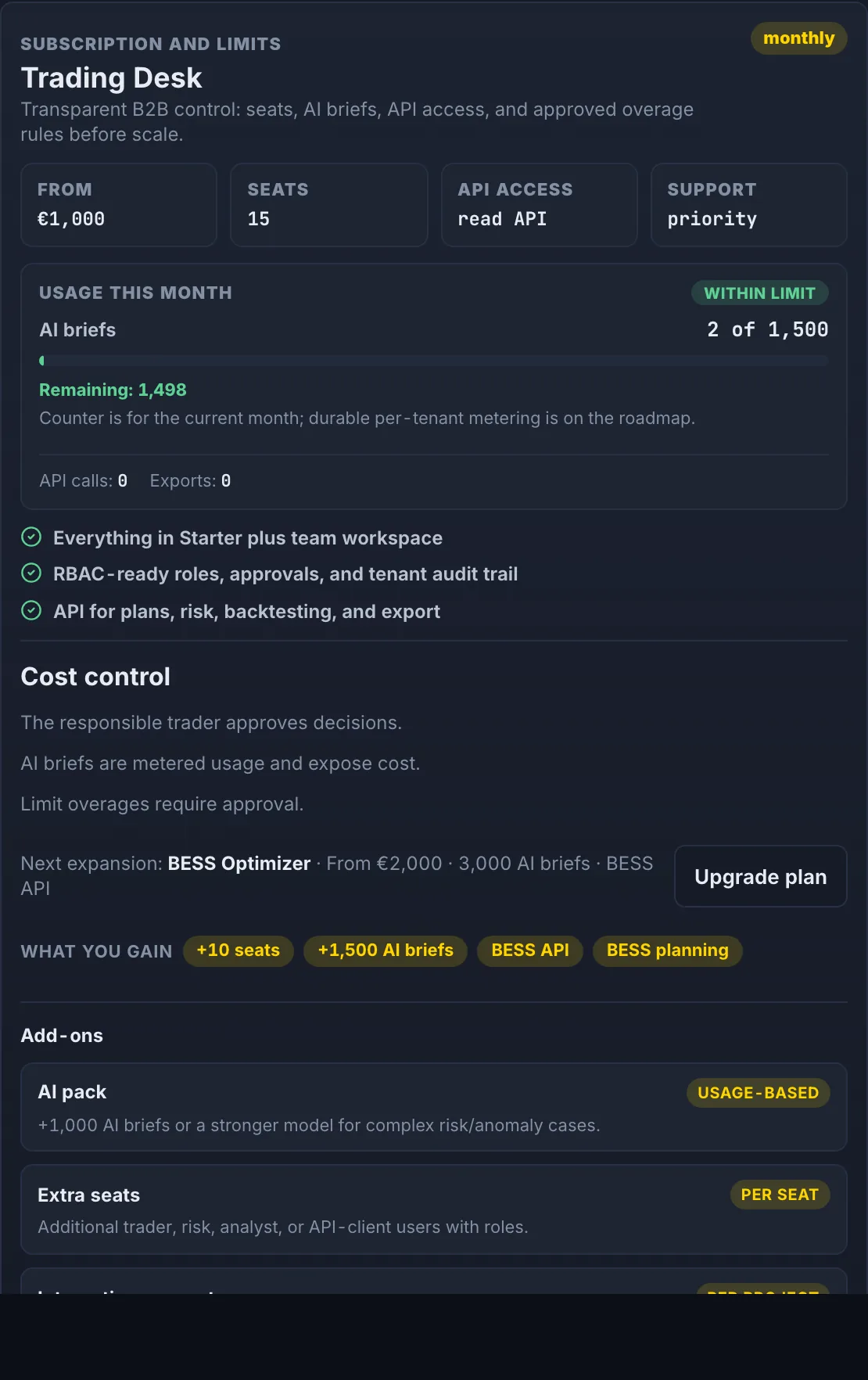
During the beta the whole workspace is free after sign-in. The account menu shows this month's usage: AI briefs, API calls, and exports.

  1. Sign in or create a free account.
  2. Open the account menu to see this month's usage.
  3. Send feedback to [email protected] — it helps us decide what to build next.

No payment and no invoices during the beta. There are no plan limits, only technical rate limits; we count usage to see what is actually useful.

Who needs what

Trader

Quickly see low/high hours, verify risk, and export the plan.

  1. Refresh OREE or import CSV.
  2. Review top opportunities and risk gate.
  3. Generate the AI brief.
  4. Export CSV only after your own decision.

Analyst

Compare scenarios, fees, thresholds, and daily performance.

  1. Change strategy parameters.
  2. Compare the DAM plan with the retrospective scan.
  3. Review BESS assumptions.
  4. Save CSV for the next model.

Risk / Compliance

See data source, guardrails, audit trail, and human approval.

  1. Check OREE or CSV source.
  2. Review the risk score.
  3. Inspect audit events.
  4. Stop export if a blocking risk appears.

BESS team

Estimate charge/discharge over DAM with efficiency and degradation.

  1. Set capacity and power.
  2. Review cycles and equivalent cycles.
  3. Compare the modeled BESS result with DAM.
  4. Export BESS CSV for modeling.

Developer / API

Connect signals, risk reports, BESS plans, and audit to internal systems.

  1. Open API docs.
  2. Inspect OpenAPI JSON.
  3. Email [email protected] to request API access.
  4. Log integration actions in the audit trail.

Lead

Assess economics, control, and next automation stages.

  1. Review expected P&L.
  2. Confirm human approval remains in place.
  3. Assess the BESS/API roadmap.
  4. Define automation boundaries.

Accessibility and usability

  • Light and dark themes work on the website and in the workspace.
  • Dense mode reduces workspace spacing for repeated daily use.
  • Buttons have visible loading and ready states so users understand what is happening.
  • Text and tables adapt to phones, and animations switch off when the system reduce-motion setting is on.

Export without surprises

  • Plan export creates a CSV and writes an audit event.
  • BESS export creates a separate CSV with charge/discharge cycles.
  • AI does not approve orders: it explains and prepares the package for a human.

Start in the workspace

Sign in or create a free account, open the workspace, refresh OREE data, generate the AI brief, and export a CSV — that is the basic daily routine.